
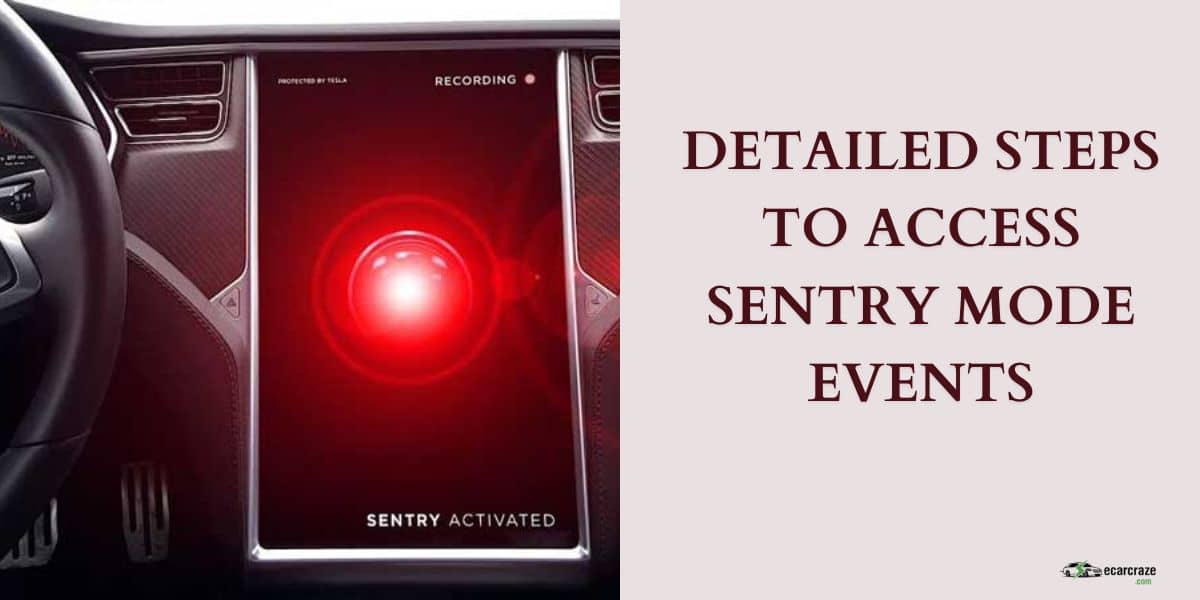
Sentry mode will be at the top of the list of the most useful features of Tesla cars. It deploys cameras and sensors to sense what is happening around the car and warns you about intrusions or mishaps. To see the reason behind the warning, you must view the Sentry mode events.
But, how to view Sentry mode events? You can view Sentry mode events in three ways. The easiest way is to view the events on the main touchscreen of your car. You can also view the live camera feed from your Tesla app and the recorded events using a USB drive.
I will elaborate on each method and show you the detailed steps to access Sentry mode events. Let’s begin.
What Is Sentry Mode on Tesla?
The Sentry mode is an innovative security feature on Tesla cars to prevent theft or damage to your car. When turned on, the Sentry mode watches for any suspicious activity around your car. If someone tries to access or harm your car, this mode automatically records the events and stores them for you to watch later.
You can also watch live dashcam footage when the Sentry mode is on. Besides recording footage, the Sentry mode triggers alert messages and alarms based on the severity of the intrusion.
What Triggers Tesla Sentry Mode?
From innocent leaning to attempts of unauthorized access, the Sentry mode on Tesla records events that can turn into a security threat. The Sentry mode usually works in three levels.
- Standby Mode: Once you turn the Sentry mode on, the system remains on standby for any unwanted events around the car. In this stage, it won’t trigger any alerts or alarms.
- Alert Mode: If a passerby is too close to your car or leaning on the vehicle, the Sentry mode will be triggered. The headlights will start pulsing and you will receive an alert message on the main screen. The recording feature will also turn on.
- Alarm Mode: If someone tries to break into your car, this mode will be activated. It will trigger the loud alarm along with headlight pulses. The video recording will start and be available for you to view.
How to View Sentry Mode Events?

As I have already mentioned, Tesla dashcam footage is available to view in three ways. Here is a detailed breakdown of the methods.
From the Main Touchscreen
This is the easiest way to look at the recorded events while the Sentry mode was on. Follow the steps below.
- Step 1: The Sentry mode icon is located on the taskbar at the bottom of the screen. It is also known as the dashcam icon and looks like a camera icon with a red dot at the top right corner. Tap the icon once to open the Tesla Sentry mode viewer.

- Step 2: Once the dashcam is launched, you will see the live feed from the cameras. Now, tap the Menu icon at the top left corner of the dashcam screen.
- Step 3: A list of recorded videos will appear on the left. You can scroll through the list and play any video you want. For your convenience, the videos have timestamps. So, you can easily find the video associated with the latest warnings.
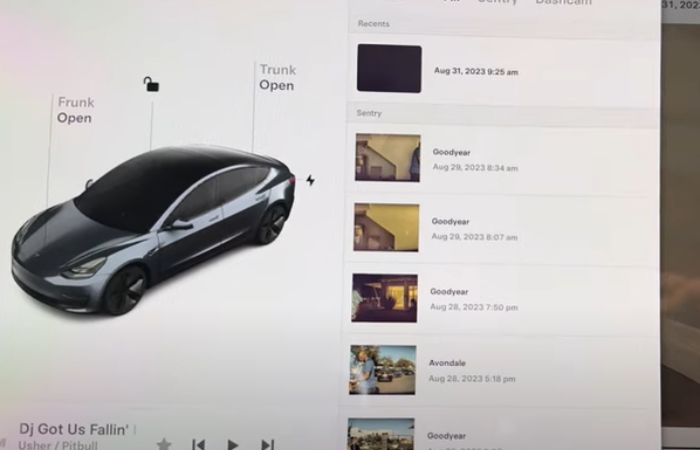
- Step 4: Tap on a video to start playing it. Other control icons will be available on the video so that you can take a better look at it.
Here is a video that can help you. Check it out.
From the Mobile App
If you have the latest version of the Tesla mobile app and purchased the premium connectivity option, you can view the live camera via the mobile app. Here is how to do it.
- Step 1: Launch the Tesla mobile app.
- Step 2: Tap on Controls. Then, choose Safety & Security from the menu.
- Step 3: The Sentry mode will be available on the list. It is turned off by default. You need to tap the toggle switch to turn the Sentry mode on.
- Step 4: Once the Sentry mode is on, you will see an option below the Sentry mode to view the live camera feed. Tap on this option to view Sentry mode events on your phone.
Using a USB Drive
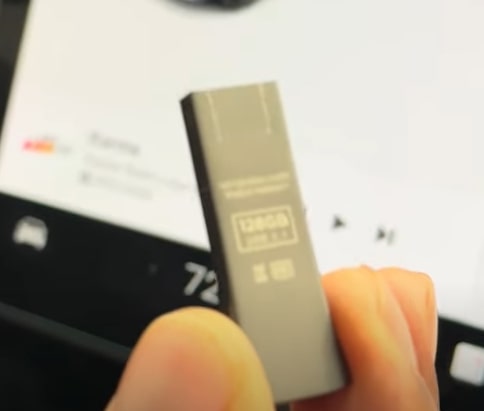
This method takes some labor but is useful if you need the Sentry mode footage in the future. See how you can watch Sentry clips from a USB drive.
- Step 1: To use this method, you must have a compatible USB drive inserted into the USB port of your Tesla. All Tesla models now come with a USB drive. The drive must be formatted before you can use it.
- Step 2: Plug the USB drive into the USB port on your Tesla. Then, go to Controls and tap on Format USB Drive. You can also format the drive using a computer.
- Step 3: Once the USB drive is formatted, you have to turn the dashcam on. Go to Controls again. Choose Safety and tap on Dashcam to turn it on.
- Step 4: Go back to the Controls menu and tap on Sentry Mode. Once it is turned on, the USB drive will be used to store the recorded events.
- Step 5: After a Sentry mode event report on your main screen or mobile app, you can pull the USB drive out and connect it to a computer. Then, you can view the Tesla camera recording on the computer and move the video files to permanent storage.
View Sentry Mode Events on Different Models: Model 3, Model S, Model X, and Model Y
The steps to watching Tesla Sentry mode events can be different depending on what Tesla model you use. I categorized the steps below for your convenience.
How to Check Sentry Mode Events on Tesla Model 3 and Model Y?
On these two models, viewing the Sentry mode events is easier. Whether you want to view the Sentry mode recordings on the main touchscreen or mobile app, follow the steps mentioned above.
How to View Sentry Events on Tesla Model X and Model S?
In these two models, you won’t find the dashcam icon directly. Instead, you need to open the Controls menu and choose Safety. From there, tap on the Sentry Mode and enable the View Live Camera option.
For these models, the method to watch security mode recordings will be the same as above.
Sentry Mode Not Recording: What to Do?
If the Sentry mode on your Tesla fails to record events, the following reasons can be prevalent. Take steps accordingly to solve the problem.
● Reason: The USB Drive Isn’t Present or Formatted
Solution: Insert a correctly formatted USB drive into the USB port of your Tesla. You should check the USB drive requirements to ensure they are safe.
● Reason: The USB Drive Is Full
Solution: Sentry mode recordings can be large files. So, the storage will fill up quickly. Move the recordings or delete unnecessary events to empty the USB drive.
● Reason: Dashcam or Sensors Are Dirty or Faulty
Solution: Check if there is dirt or debris on the cameras and sensors. Clean them properly to get a clear recording of events. Also, contact the Tesla service center if the cameras or sensors don’t work after cleaning.
● Reason: Battery Level Is Low
Solution: Tesla cars require at least 20% of the battery level to activate the Sentry mode. If your battery level is low, charge the vehicle.
● Reason: Software Issue
Solution: Update the Tesla software to the latest version. If the problem persists, check for security updates or contact Tesla support.
FAQs
Tesla owners also ask the following questions in different situations. The answers to these questions would be helpful to you.
Yes. When the vehicle is put in Parked and locked from the outside, it will still record any suspicious events.
No. Enabling the Sentry mode is a prerequisite for dashcam recordings. If the Sentry mode is turned off, the car won’t record.
It depends. If the Sentry mode is on, the cameras will record even if the car is off. Otherwise, Tesla cameras won’t record anything.
Conclusion
As a Tesla owner, it is your responsibility to explore the nooks and crannies of the available security features. The Sentry mode is such a feature that can prevent mishaps and help you identify people responsible for any damage to the car.
In this guide, I showed how to view Sentry events and how to access Tesla camera footage. With these detailed steps, you can now easily get video recordings from the Tesla cameras. You can also get the live video feed to see what is happening around your car.

I am an experienced guide in electric mobility, offering clear and expert guidance for those venturing into the world of electric vehicles.
Through collaborations, research, and hands-on experience, I navigate readers through the evolving landscape of smart automobile technologies and the significance of renewables.