

Tesla navigation helps with finding the best routes to reach your destination. You may have noticed some basic similarities as well as differences between Tesla and Google Maps. This often confuses new Tesla car users.
Does Tesla use Google Maps? No, Tesla does not use Google Maps directly but as a base. Tesla has developed its own navigation system by integrating different sources, including Google. However, Google Maps can still be used directly on Tesla cars if you are more comfortable with it.
Using Google Maps in Tesla can help you get more detailed mapping data and access to Google’s point-of-interest database. Let’s see the differences between the two maps and how you can use Google Maps in Tesla.
Tesla Maps and Navigation System: An Overview
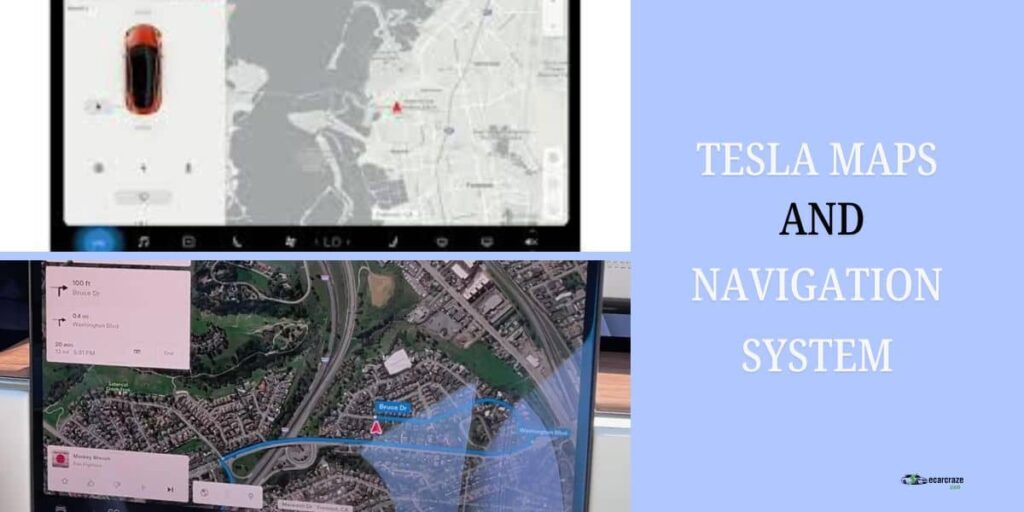
Tesla maps are always open on the vehicle’s touchscreen unless the car is in reverse. It provides some of the standard features along with unique ones as follows.
- Standard navigation features, like route planning, turn-by-turn navigation, and traffic updates.
- Automotive zoom and orientation based on driving direction
- Searching destination by address and point of interest.
- Saving locations, such as home, work, or favorites.
- Finding and navigating to Tesla Supercharger stations
- The trip planner allows you to add multiple stops to your route
- Switching between map and satellite view for a different perspective.
- Voice commands can help with navigation, searching for destinations, and adjusting zoom and orientation.
- Real-time traffic conditions and automatic navigation to predict destinations based on routine and calendar.
Tesla Map vs Google Maps: What’s the Difference
Many of Tesla Maps’ features are similar to Google Maps. However, there are a number of dissimilarities between the two as well. Check the table below for that.
| Feature | Tesla Navigation | Google Maps |
| Map Data Source | Uses mapping data from third-party providers like Google and MapBox | Primarily uses its own mapping data and imagery |
| Traffic Data | Shows real-time traffic data and estimates travel time-based on current conditions | Shows real-time traffic data and estimates travel time-based on current and historical conditions |
| Points of Interest | Displays nearby Superchargers, destinations set in the Tesla app, and basic POIs like gas stations and restaurants | A wide range of POIs, including businesses, parks, EV charging stations, landmarks, and user-submitted locations |
| User Interface | Minimalist design optimized for Tesla’s in-car display | More information-dense interface with layers and customization options |
| Multimodal Navigation | Currently limited to driving directions | Provides directions for driving, walking, biking, and public transit |
| Accuracy | It is not always accurate and offers limited information regarding live traffic | Provides information on a larger network of roads and updates it more often |
How to Use Google Maps on Tesla?
Using Google Maps on Tesla can help you get more accurate and updated live traffic data. Follow these simple steps for this.
- You need to download the Tesla Display mobile application first on your Android or iOS. The app is available both on the Play Store and the App Store.
- Connect the car with your phone using a mobile hotspot. You must tap on the checkbox for “Remain connected in Drive” on the Tesla touchscreen.
- Launch the mobile app now and go to the settings tab. Find and tap on “Control on the touchscreen.” A “Start” button should be visible on the same page right at the center bottom of the screen. Click on it and select “Phone screen when driving.”
- Go to the Tesla touchscreen again and visit the URL “https://td9.cc:7777” on the browser. Your phone screen will be visible on the touchscreen now.
- Keep the Google Maps active on your phone and use the map on the touchscreen. Watching this video may explain the process more clearly.
Why Does Tesla Use Multiple Maps?
Users of Tesla can benefit from the integration of navigation systems.
Can Survive if One Goes Down
Relying on a single map could be a drawback in case of server errors. By using multiple maps, the system can assist users even if one source is not working. Additionally, by cross-checking information, Tesla can provide more accurate information.
Improved Navigation Assistance
Tesla Navigation combines data from various sources and helps them gain data from various perspectives. Waze, one of the sourcing partners, can help Tesla crowdsource information.
Besides, Tesla can access a wider range of geographic information, which reduces the risk of incomplete data. They can leverage the strong points of each provider to deliver more precise and comprehensive navigation.
User-friendliness of Tesla Navigation
Tesla integrates Google Maps and Mapbox to ensure a visually more appealing and user-friendly app. Voice commands allow for hands-free operation, further enhancing convenience. Additionally, HD mapping ensures accurate and precise guidance.
Can Provide Useful Insights about User Preference
Different navigation systems have different unique features. Integrating them into Tesla can help them understand which features users feel comfortable with. This can be significant information for them while developing Tesla’s own mapping and navigation system.
FAQs
For more related information regarding Tesla navigation, check the questions below.
No, you need an active internet connection to use Google Maps on Tesla for real-time navigation updates. Without internet access, the Tesla’s navigation system can still function using preloaded maps and cached data. However, it won’t have access to live traffic information or route updates.
Yes, maps are provided free of charge to Tesla owners. Tesla includes map updates and navigation services as part of the vehicle’s standard features. No additional subscription fees are required. This ensures that owners have access to up-to-date mapping data and navigation functionality without any ongoing costs.
No, Tesla’s touchscreen does not support the direct download or installation of third-party applications such as Google Maps. The navigation system in Tesla vehicles primarily relies on Tesla’s proprietary mapping solution. Nonetheless, you can still use Google Maps on your car following the instructions above.
Conclusion
Though Tesla gets some help from Google Maps for navigation, it does not completely rely on Google. Instead, it has various data providers, which ensures better service for Tesla car owners. You can still use Google Maps through a mobile screencast.
Google Maps offers more precise information about points of interest and other aspects. Your Tesla driving experience can get much better with the integration of Google Maps.

I am an experienced guide in electric mobility, offering clear and expert guidance for those venturing into the world of electric vehicles.
Through collaborations, research, and hands-on experience, I navigate readers through the evolving landscape of smart automobile technologies and the significance of renewables.