

Tesla’s voice command allows drivers to execute various vehicle services without using the touchscreen. However, this feature is not perfect, and sometimes, yours might stop working.
But what are the reasons behind Tesla’s voice command not working? When your Tesla has this issue, connectivity, and software issues are often the cause. However, the hardware parts, like the microphone and the voice command button, may also be the cause. Get the vehicle diagnosed and fixed to solve these issues.
The article will help you fix the issue with the voice command not working on your Tesla. Read on to learn the reasons and the solutions to fix them.
Overview of The Reasons Tesla Voice Command Is Not Working
The table below lists the various reasons your Tesla voice command isn’t working and their solutions.
| Reason | Solution |
| Connectivity Issue | Get a strong network connection |
| Software Issue | Update software or reset the vehicle |
| Microphone Issue | Clean the microphone or replace |
| Failed Button | Replace the button unit |
Reasons Behind Tesla Voice Command Not Working
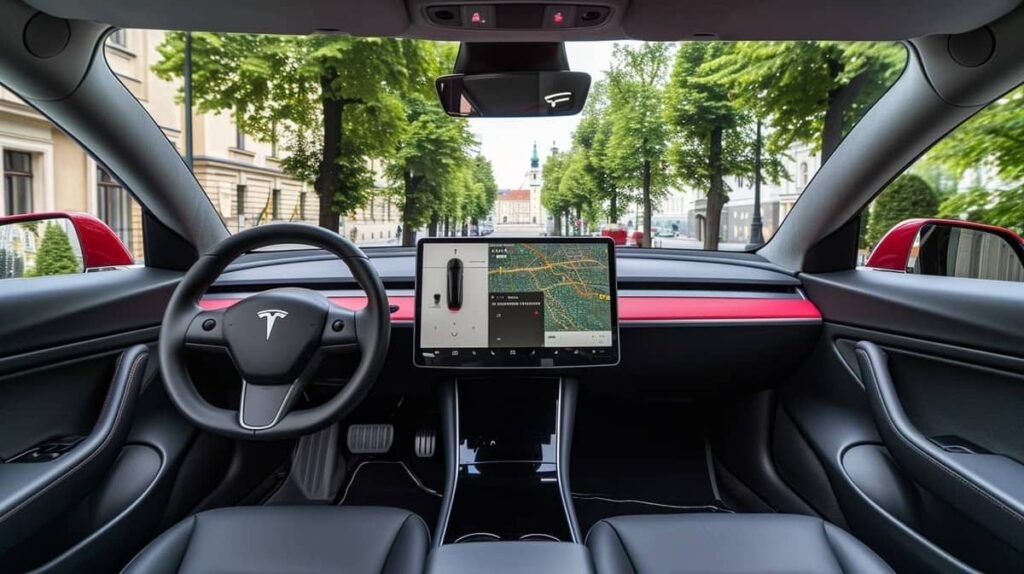
Sometimes, the Tesla voice command may fail to respond, and you have to try several times to get it to start. Before you diagnose your car to the causes discussed below, ensure you’re giving the correct instructions and voice commands.
If you’re giving the correct instructions and commands, but the system doesn’t work, check the following potential reasons.
1. Connectivity Issues
Connectivity issues are among the most likely reasons Tesla’s voice command has issues. The voice command relies on Tesla’s server to execute, which makes an internet connection necessary for it to work.
Most of the time, when the voice command doesn’t seem to understand you, the poor connection is often the issue. Connections can also be behind if the Tesla touchscreen displays the correct command but fails to execute.
Diagnosis
Check the cellular data or Wi-Fi connection status on the top right or left corner of the touchscreen to confirm the signal strength. A grayed-out icon or one with an X means there is no connection.
Sometimes, you might have a connection, but the signal strength is low, which still affects the voice command.
Solutions
The solution to connectivity issues interfering with the voice command is to improve connectivity. Move the vehicle to a location with a stronger cellular or Wi-Fi connection and try the voice command again.
You can also connect your Tesla to your phone to use its internet if it’s faster and stronger. You can do this through the settings section on the touchscreen with your phone’s hotspot on.
For further troubleshooting advice and strategies to optimize your Tesla’s connectivity, explore our comprehensive guide on addressing Tesla’s premium connectivity issues not working.
2. Software Issues
Software issues are other possible reasons your Tesla voice command doesn’t work. Like most other features in the vehicle, the voice command depends on the software to interpret the voice command.
The software may have a glitch or a bug, causing these issues in interpreting or executing your voice command.
Diagnosis
Though the software may affect the voice command only, check if there are issues with other vehicle features.
Solutions
Solutions to software issues include performing a software update or resetting the vehicle. Ensure you’re using an up to date software. Usually, if an update is available, there is a green download icon on the top right section of the screen.
You can also check for updates by touching the car icon on the touch screen and then the Software section. Scroll to the software and check if there’s an update.
However, various users experiencing this issue reported that it started after a software update. If this is your case, perform a reset following the steps below.
- Step 1: Park the vehicle and ensure all doors are locked.
- Step 2: Press the brake pedal and hold.
- Step 3: Hold the two scroll buttons on the steering wheel at the same time until the screen goes off and comes back on again.
- Step 4: Allow the system time to restart.
- Step 5: Test the voice command.
Watch how to do it in the video below.
3. Microphone Issues
Your Tesla’s microphone can also be behind the voice command not working. The system depends on the microphone to capture the command. Dust and obstructions are usually the reason for these microphone issues.
Diagnosis
Check the microphone for obstructions like dirt, debris, or physical obstructions. Test the microphone by making a call using your Tesla’s Bluetooth system.
Solutions
The solutions include clearing any obstruction from the microphone or replacing it. The Tesla microphone is usually in the headliner overhead controls assembly. This is usually where the front cabin lights are.
Wipe the dirt and debris off the microphone and avoid placing or hanging anything near it. Also, ensure you’re loud and clear enough when making voice commands.
If these solutions don’t solve the issue, replace the headliner unit. Usually, this means you replace the dome lights and the hazard button since they are on the same unit. Use the Owner’s manual to learn the steps specific to your model.
However, these are the usual steps.
- Step 1: Turn off the vehicle.
- Step 2: Using a ply tool, remove the headliner unit.
- Step 3: Disconnect the electrical connection to the unit.
- Step 4: Connect the electrical connector to the new headliner unit and reinstall it.
- Step 5: Test the microphone.
Watch this video to learn how to remove the unit on Model 3
The replacement should cost between $100 and $200.
4. Failed Button
To initiate a voice command, you must press and release the scroll button on the right side of the steering wheel. An issue with this button can also be why your voice command feature doesn’t work.
The button may be damaged or stuck, which happens after an impact or as the vehicle ages.
Diagnosis
To confirm the buttons as the reason your Tesla’s voice command doesn’t work, check whether other buttons are functional. If they work as they should but the voice command button doesn’t, it’s the cause.
Check whether the button is stuck or appears damaged. Also, if you press the horn and the voice command comes on, then you know the command button is dysfunctional.
Solutions
The solutions include replacing the button control unit. Submit a service request and get a professional to replace it. However, you can also do it by following the steps below.
- Step 1: Turn off your Tesla.
- Step 2: Locate the two screws behind the steering wheel (each side) and unscrew them.
- Step 3: Unplug the connectors to the various components on the steering wheel assembly.
- Step 4: Pull out the steering wheel assembly (the part with the horn).
- Step 5: Remove the screws holding the button control unit to the steering wheel assembly.
- Step 6: Remove the connector to the button control unit and pull it out. It’s best to remove both sides.
- Step 7: Reinstall these units and screw them back on.
- Step 8: Reconnect all the connectors and reinstall the steering wheel assembly.
- Step 9: Test the new buttons.
Check these videos on how to replace these buttons on Model S and X.
The repair is usually free if you’re under warranty and up to $300 if it’s expired.
Related Questions
Below are some frequently asked questions on the voice command not working on Tesla.
Voice command won’t work if there are loud noises in the vehicle or surrounding areas. Avoid noisy areas and talk clearly when using this feature.
Usually, the Tesla voice command system understands most accents. However, ensure you’re saying the words clearly.
Yes, if the settings are English, the voice command won’t understand the command. Go to the voice recognition language section under the display menu and change to your preferred language.
Final Thoughts
If your voice command fails and you don’t want to go back to using the touchscreen, check the various possible causes discussed in the article. The issue may be software or hardware-related, including outdated software and failed buttons.
Diagnose each of these parts and apply the necessary solutions. The steps in the article should guide you when applying the fixes yourself without a professional’s help. However, consider hiring professionals to diagnose and fix the issue if you’re uncomfortable handling the repair.

I am an experienced guide in electric mobility, offering clear and expert guidance for those venturing into the world of electric vehicles.
Through collaborations, research, and hands-on experience, I navigate readers through the evolving landscape of smart automobile technologies and the significance of renewables.