
Tesla users are not happy with the latest updates to the Tesla app. This updated version is slow, displays more pop-up ads, and does not always show the car’s current condition. However, the most common problem is that the app sometimes fails to connect to the car.
So, why Tesla app won’t connect to the car? There are several reasons why the Tesla app might fail to connect to your car, including:
- You have a poor Wi-Fi connection.
- The app is not running in your phone’s background.
- The app has logged you out.
- Problems in Tesla’s server.
- You haven’t properly set up your Tesla app.
- You use a VPN on your phone.
In this article, we will discuss why you are unable to connect the Tesla app to your car. So, let’s get started!
Tesla App Not Connecting To Car: Most Common Reasons And Solutions
Check out the information we have given below. Here, we have listed six common reasons why the Tesla app may fail to connect to your car.
Reason 1: You Have A Poor Wi-Fi Connection
If the Wi-Fi signal in your area is unstable or weak, it can prevent the Tesla app from connecting to your car.
Solution
You can solve this problem in the following ways:
- Buy a data pack for your phone so the app can use the internet if Wi-Fi is unstable.
- Switch off the Wi-Fi on your phone, then switch it back on.
- Delete the app, reinstall it, and try to connect the app to the car.
Reason 2: The App Is Not Running In Your Phone’s Background
When you close an app or switch to another app on your phone, your phone’s operating system prevents it from running in the background. This, in turn, helps to conserve your phone’s battery life.
However, the Tesla app needs to run continuously in the background for the following reasons:
- To instantly detect the Bluetooth signal.
- Immediately connect to your car whenever you are near it.
So, if the app is not running in the background on your phone, it won’t be able to connect to your car.
Solution
You can fix this problem in three ways:
- Restart your phone, then open the Tesla app and try to reconnect.
- Reinstall the app on your phone and then try to connect it to your car.
- Turn off “Battery Saving Mode” on your phone.
Reason 3: The App Has Logged You Out
Some Tesla users have complained that the app logs them out automatically after a few hours of logging in. Additionally, they need to log in every time they want to use the app. This might also be the reason why the app fails to connect to your car automatically.
Solution
You need to download the latest version of the app and then manually log into your Tesla account.
Reason 4: Problems In Tesla’s Server
In September 2020, Tesla drivers around the world could not access their cars, and the Tesla app stopped working. As per Torque News, this happened because too much data was mistakenly logged into the server. So, the server collapsed.
Solution
If you ever encounter a similar situation, you should report the issue to the authorities and wait until the server starts functioning again.
Reason 5: You Haven’t Properly Set Up Your Tesla App
If the Tesla app does not connect to your car, it could be because:
- You did not set up the app with all the necessary information.
- You did not give the app permission to access your location, microphone, Bluetooth, or internet services.
Solution
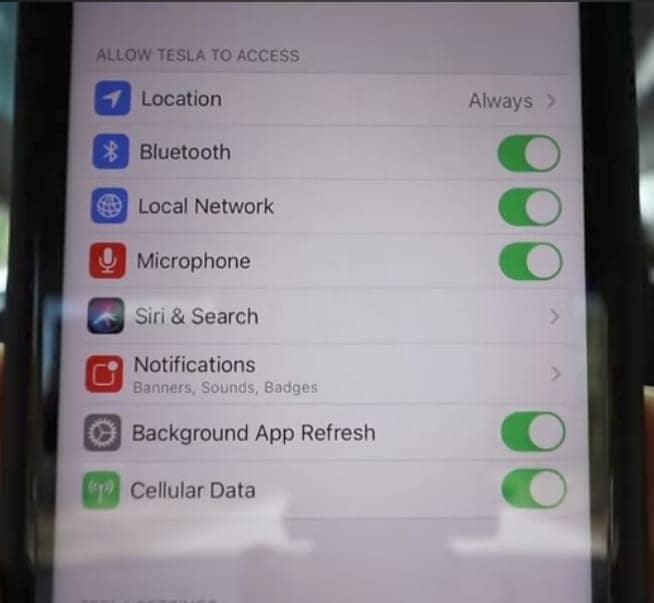
Go to the settings option in your Tesla app. Then, turn on the following features on your phone:
- Location.
- Bluetooth.
- Microphone.
- Local Network.
- Cellular Data.
Reason 6: You Use VPN In Your Phone
You might use a VPN on your phone to prevent hackers or service providers from tracking your location and browsing history.
However, many Tesla users have noticed that when they use a VPN, they cannot use the Tesla app or go to the company’s official website. This happens because the company probably blocks traffic from VPN servers.
Solution
Try not to use VPN while operating the Tesla app. If you are an iPhone user, you can use “iCloud Private Relay” instead of a VPN to protect your IP address and browsing history.
How Can You Connect The Tesla App On Your Smartphone To Your Car?
Check out the steps we have given below. You can follow these steps to connect your phone with your Tesla correctly.
Step 1: Open either the “Google Play Store” or the “App Store” on your phone.
Step 2: Search for the Tesla app and download it on your phone.
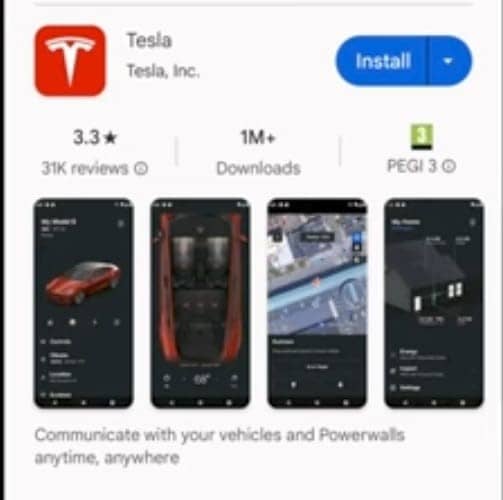
Step 3: Open the app on your phone.
Step 4: Now, enter your email address and password to sign in to your Tesla app.
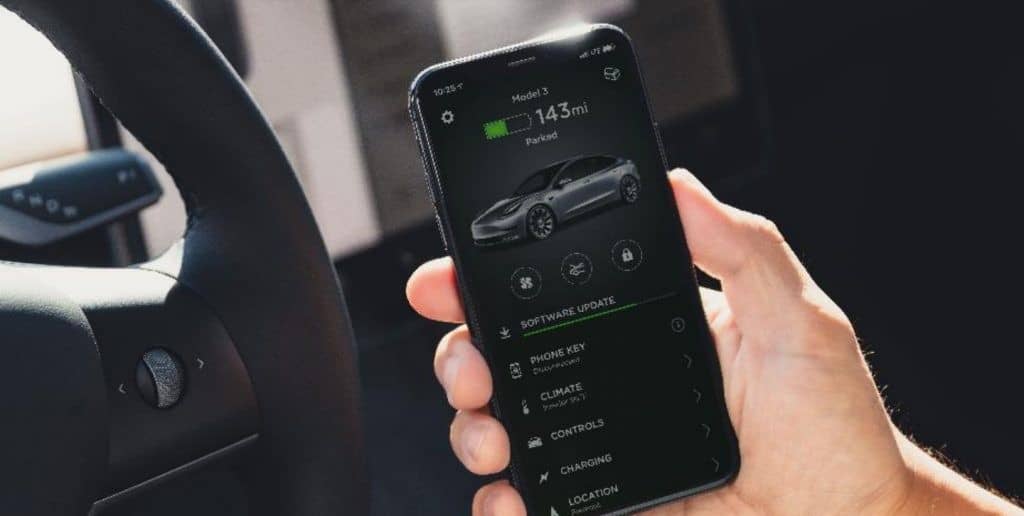
Step 6: Turn on Bluetooth on your phone.
Step 7: Press on the “Bluetooth Icon” at the top of your Tesla’s touchscreen.
Step 8: Now, click on the “Add New Device” option.
Step 9: Press the “Search” option.
Step 10: Afterward, the available devices will appear on your car’s touch screen.
Step 11: Click on the device that you want to pair with your car.
Step 12: Wait for a few seconds. A random PIN number will appear on your car’s touchscreen and your phone.
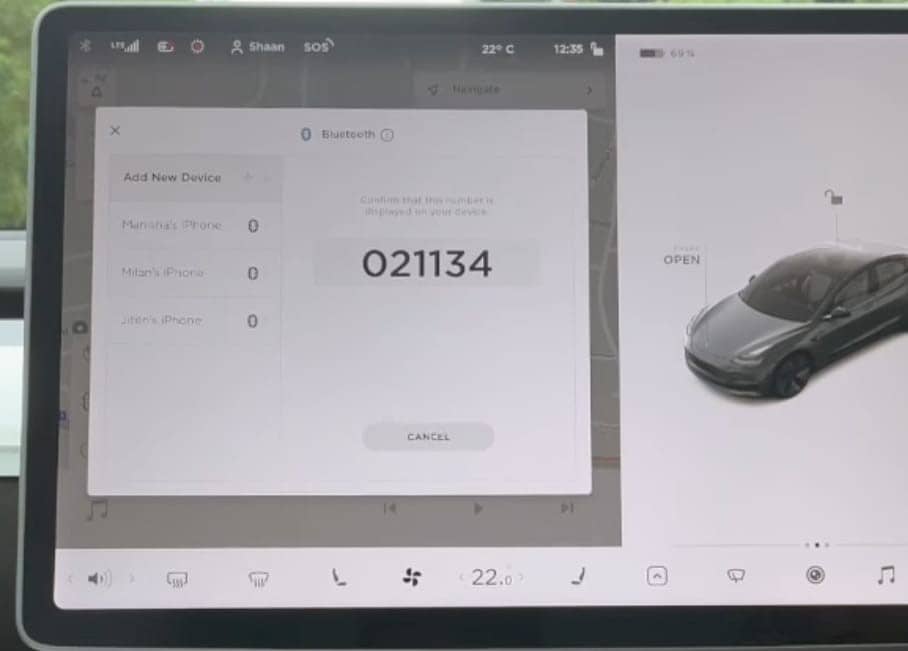
Step 13: Lastly, press “Pair” on your phone to connect your phone to your car.
For more information, you can watch this YouTube video.
FAQs
Read the FAQs we have given below to learn more about why the Tesla app fails to connect to your car.
If you notice that the Tesla app fails to connect to your car from only a specific phone, you should uninstall the app and install the latest version. Then, try to connect the app to your car again. If that doesn’t solve the issue, use another phone to operate the Tesla app.
Typically, the app displays this message when it cannot detect your Tesla within a specific range. You should ensure your phone’s Bluetooth is always turned on while using the app and stay close to your car.
If there is a weak GPS signal, it prevents the app from properly locating and connecting to your car. Therefore, you should turn on your phone’s location and try to reconnect the app to the car.
Final Words
Overall, the Tesla app might not connect to your car due to various technical malfunctions, server problems, or human errors. Most commonly, the app fails to connect to your Tesla if you have a weak Wi-Fi or internet connection in your area.
Moreover, if you use a VPN, have not set up the app correctly, failed to connect your phone to your car, or have not downloaded the latest version of the Tesla app, it will not work properly.

I am an experienced guide in electric mobility, offering clear and expert guidance for those venturing into the world of electric vehicles.
Through collaborations, research, and hands-on experience, I navigate readers through the evolving landscape of smart automobile technologies and the significance of renewables.