
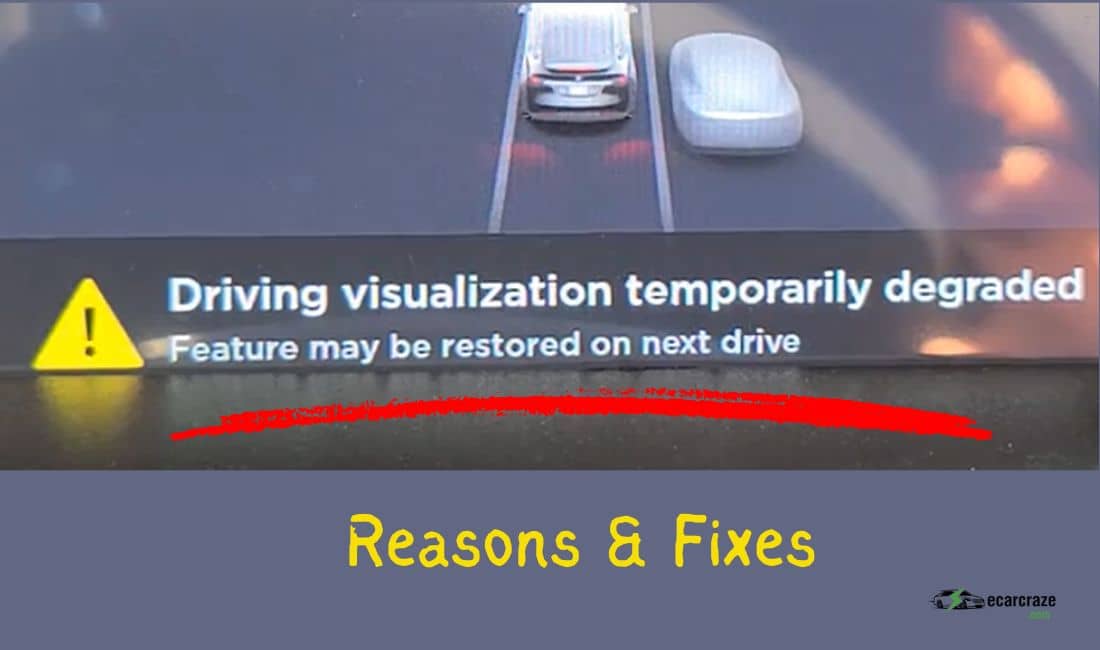
The sleek touchscreens in Tesla’s lineup of electric vehicles provide drivers with optimized navigation, entertainment, and other helpful information. But many owners have recently been alarmed to see the notification “Driving Visualization Temporary Degraded” pop up on the sleek touchscreens.
So, what causes this “driving visualization temporarily degraded” error? Well, the most common cause is a software glitch that can trigger momentary lapses in the visualization system. Other causes are sensor interference, edge case challenges, environmental conditions, and network connectivity issues.
This article will explore everything you need to know about this error, rumored solutions drivers have tried, and so much more. So, shall we get started?
The Meaning of “Driving Visualization Temporarily Degraded” Error
This error means that there is a partial failure of the advanced imaging systems that support Autopilot and Full Self-Driving capabilities in your Tesla. This system that has failed is responsible for:
- Reading road signs
- Detecting lanes
- Identifying objects around the vehicle
- Mapping the car’s surroundings in real-time
Consequences of the “Driving Visualization Temporarily Degraded” Error
When this message pops up on your Tesla touchscreen, here are the consequences that you will face:
- Reduced Safety: The car loses safety features like automatic emergency braking, lane departure warning, and blindspot monitoring. This could increase the risk of an accident if you are used to this system.
- Loss of Autopilot and Full Self-Driving capabilities: As mentioned, the visualization system makes these two possible. If the car cannot see its surroundings, forget about its having these two capabilities.
To learn more about how this impacts driving safety, check out our article on Tesla’s front passenger safety restraint system fault.
Causes of the “Driving Visualization Temporarily Degraded” Error

Below are the culprits that cause this error:
1. Software Glitches
Tesla vehicles rely heavily on complex software that controls everything, from battery management to self-driving capabilities. Updates containing new features are pushed out frequently.
However, thoroughly testing every possible interaction within millions of lines of code is impossible. Hence, bugs inevitably slip through.
2. Sensor and Camera Interference
Teslas rely mainly on their cameras to have their driving visualization up and running. Old models have ultrasonic sensors in addition to cameras. These ultrasonic sensors are prone to interference from electromagnetic noise from radar installations and other electronics.
The sensors and cameras may also be blocked by snow and debris. Also, outright component failures like blown fuses, short circuits, or physical damage to camera or sensor units will compromise the driving visualization of your Tesla.
3. Network Connectivity
Your car relies on constant connectivity to the internet and Tesla servers for optimal performance of driving visualizations. With a good network, the car will do map updates, download traffic data, lane assist references, and so on.
Full Self-Driving Teslas are specifically vulnerable as they need good connectivity to the latest neural networks that power real-time decision-making. So, when you are in dead zones with no cell service and signal, your driving visualization is rendered useless.
4. Edge Case Challenges
Uncommon intersections, complex road markings or signage, and damaged lane markings could confuse your vehicle attempts for visualization. This is also the case if you have unexpected obstacles and objects like overturned vehicles, farm animals, and strange objects. It is difficult for the software to display the visualization correctly due to the obstacles.
5. Environmental Conditions
The following environmental conditions will affect your car visualization technology:
- Low sun angles at dusk or dawn cause sun glares on camera lenses.
- Night-time driving with little ambient lighting.
- Inclement weather like heavy fog, rain, or snow.
- High humidity. This accelerates fogging and condensation on sensors and cameras.
- Road spray, mud, dirt, and debris from wet or snowy conditions coat cameras and sensors.
6. System Resource Allocation
Your onboard computers have limited processing power, memory, and bandwidth. This is supposed to be shared across many systems. Poor resource allocation could starve your visualization system tasks.
Also, demanding workflows like neural net inference take a lot of resources and priority over rendering to the dashboard. With little memory allocated to visualization, it will not be able to complete its tasks as needed.
Fixing the Driving Visualization Temporary Degrade Malfunction
Below is how you can fix this error on your Tesla vehicle:
1. Self Recovery
In most cases, you do not need any intervention. Just continue driving, and the system will recover itself. The car is able to identify and address transient issues independently.
If the cause was bad weather conditions like heavy snow, rain, and sun shafts at sunset or sunrise, the car will also recover. Once the causative is gone, you should have your visualization running normally again.
Teslas use the AT & T network. So, if you cross a remote area without coverage from this telecommunication company, you’ll lose network connectivity temporarily. It should resolve by itself once you drive to an area covered by AT&T.
2. Vehicle Reboot
Much like a normal computer, your car systems might benefit from periodic reboots. When your car reboots, it will swiftly recalibrate and realign its internal systems. This could also solve issues like data processing delays and resource allocation errors.
To reboot your Tesla, follow the steps below.
- Park the vehicle. You don’t want a reboot while driving.
- Press the two scroll buttons on your Tesla steering wheel at the same time.
- Hold these buttons for a few seconds till your touchscreen display switches off.
- After about 45 seconds to a minute, the Tesla “T” logo will appear on the screen. You have just successfully rebooted the car.
Here is a YouTube video for visual illustration:
3. Clean Sensors and Cameras
Use the following steps to do so:
- Locate the cameras: Tesla has 8 external cameras. There is one above your rear license plate, and each door pillar has a camera, too. Three are on your windshield just above your rearview mirror. Each front fender also has a camera.
- Locate the sensors: If your car is an older model, it has ultrasonic sensors and radar. The radar is mounted behind the front bumper. Ultrasonic sensors are located in the front and rear bumpers.
- Gather cleaning materials: You will need a soft cleaning material like a microfiber cloth or lens cleaning wipes. Avoid abrasive materials.
- Do the cleaning: Remove any visible debris from your sensors and cameras. Use circular motions to remove dirt and smudges effectively.
4. Check for Software Updates
Your car checks for software updates every 24 hours. So, if the last update did the damage, you have to wait for another 24 hours before the car can check for software updates. Also, sometimes it can get stuck in checking for updates. Here is how to fix this:
- Reboot the vehicle by pressing both scroll buttons on your steering wheel.
- Once done, tap the Vehicle icon.
- Go to “Software” and authorize any update if needed.
Here is a YouTube video for visualization:
5. Re-Calibrate your Tesla’s Cameras
Use the following procedure for re-calibration:
- Go to Camera Calibration: You can access this via Controls > Service.
- Tap “Clear Calibration:” This will wipe out all the calibration data of your vehicle cameras.
- Drive for several miles: For the cameras to recalibrate, Tesla recommends that you drive for 20 to 25 miles. The manufacturer further states that the distance it takes for recalibration will vary depending on the environment you are driving through.
6. Contact Tesla Support
If all the above fails to fix your visualization issue, it’s time to contact Tesla support. Use your mobile app or their official phone numbers to reach out. They will help you fix the error either by over-the-air updates or by having your car fixed physically.
FAQs
Here are answers to questions that will come up in the process:
Yes. Driving Visualization loss is not catastrophic. However, this error strips away redundancies and the convenience drivers expect from this premium-priced vehicle. So, monitor your blindspots manually. Also, increase your following distance, as the vehicle will not help you with emergency braking.
No. This error does not render your vehicle undrivable. If you need immediate service, you are better off driving to the nearest Tesla service center.
Yes. Keep your camera and sensors clean and in the best condition. Also, avoid overloading your car computers with various tasks at the same time. As for things out of your control, like weather and network, there is nothing you can do to prevent this temporary error.
Conclusion
The driving visualization temporarily degrades error on your touchscreen is not a serious issue. It does not render your vehicle immobile. What’s more, it is “temporary,” just as the error itself says.
The error will disappear by itself after a few minutes or seconds. If it doesn’t, you can always troubleshoot by rebooting, cleaning your sensors, and undertaking other procedures as described in this article.

I am an experienced guide in electric mobility, offering clear and expert guidance for those venturing into the world of electric vehicles.
Through collaborations, research, and hands-on experience, I navigate readers through the evolving landscape of smart automobile technologies and the significance of renewables.