
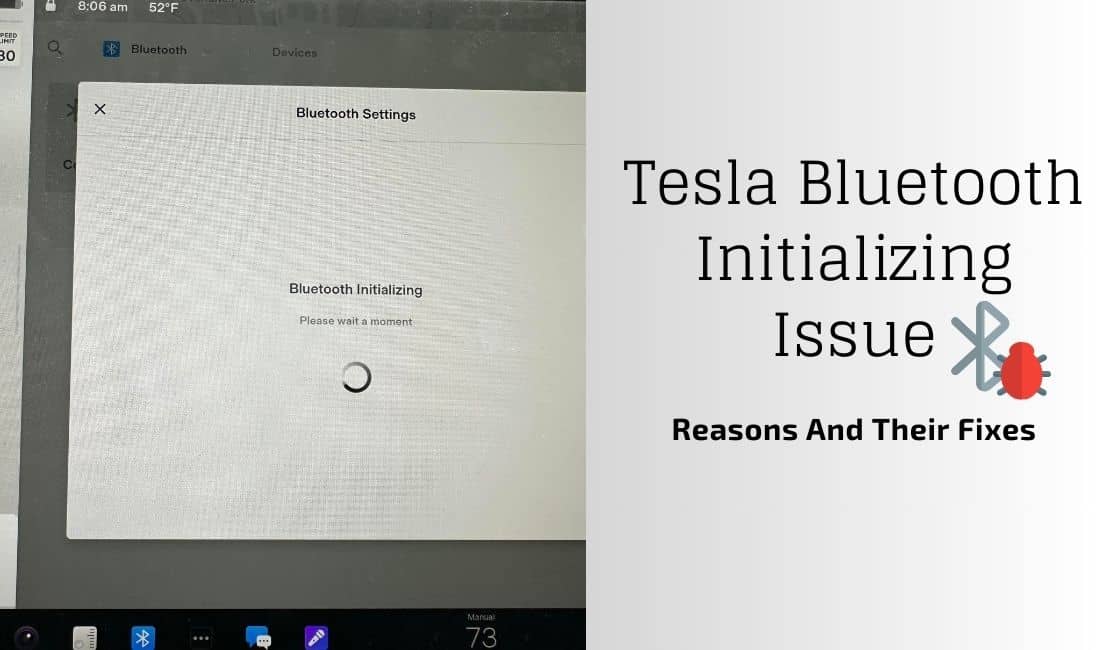
One of the most irritating problems any Tesla user may encounter is the Bluetooth stuck on initializing. Fortunately, the fixes are quite easy and require no skill at all.
But why does the Tesla Bluetooth initializing problem occur? Well, the primary reasons are a Tesla software glitch, a phone’s software glitch, or interference from other electronic devices or radio signals. Additionally, it might also be a compatibility issue with your phone and your Tesla or a faulty Bluetooth antenna.
Don’t get scared right away since we will cover the problem in detail along with a step-by-step solution. As mentioned, the fixes are fairly straightforward, so unless it is a profound problem, you won’t need to see a specialist.
Tesla Bluetooth Initializing Stuck Issue: Reasons And Their Fixes
Here’s a table that summarizes the reasons behind the Bluetooth problem, along with their fixes;
| Reasons | Solutions |
| Tesla Software Glitch | Update your Tesla’s software |
| Phone’s Software Glitch | Update your phone’s software |
| Interference From Other Electronic Devices Or Radio Signals | Turn off all potential interference devices |
| Relocate to a different place and try reconnecting | |
| Compatibility Issue With Your Phone And Your Tesla | Try connecting with other devices |
| Faulty Bluetooth Antenna | Replace the antenna |
In-Depth Troubleshooting: Tesla Bluetooth Initializing Stuck Issue
There is no doubt that the Bluetooth in Tesla is more important than any other vehicle. However, the initializing issue is common amongst its users and is more noticeable due to its widespread use. So let’s learn about the reasons behind this problem and their fixes.
1. Tesla Software Glitch
Bluetooth is heavily dependent on software, whether it be your phone or your vehicle. However, software is never prone to glitches, which can occur due to bugs or flaws in the code. As a result, unexpected behavior or malfunctions are seen.
Similarly, a compatibility issue between the Tesla software and the Bluetooth hardware or firmware is present. So, a mismatch between the software and hardware versions can lead to compatibility issues and difficulties in initializing the Bluetooth connection.
Fix
The only fix you can apply here is to update the software in your Tesla. Here’s how you can do it;
- Open the Tesla app on your smartphone
- Press on the “Vehicle” tab at the bottom of the screen
- Select your Tesla vehicle
- Press on the “Software Updates” tab
- Click on the “Download” button next to the update
- Tap on the “Install” button next to the update
- Restart your vehicle
Here’s a video that should help you with the updating process;
2. Phone’s Software Glitch
Similar to Tesla’s software glitch, your smartphone is also prone to software glitches. Your phone’s Bluetooth hardware might not be compatible with your phone’s current software version. Thus, the Bluetooth feature doesn’t work as smoothly as expected, resulting in the initializing problem.
Fix
You have to update your phone’s software. Even though it varies from phone to phone, here’s the general method;
- Go to “Settings” from the menu
- Look for the “Software Update” or “System Update” option and press on it
- If an update is available, you will be asked to download it
- Simply click on the “Download” button and the download should start
- Once completed, click on “Install”
- Your phone should restart and your software will be up to date now
3. Interference From Other Electronic Devices Or Radio Signals
Bluetooth technology operates in the 2.4 GHz frequency range. However, numerous technologies operate at the same 2.4 GHz frequency, such as Wi-Fi and microwave ovens. This congestion can lead to interference issues that affect the performance of Bluetooth devices.
In short, one signal overlaps with another, which results in your Bluetooth getting confused and polluted. As a result, a Bluetooth initializing problem is seen.
Fix
There’s no specific fix for it, but there are multiple methods you can apply that should get rid of this problem;
- Try powering off any interfering devices within your hand
- Try relocating your Tesla to a less interfering spot and connecting the Bluetooth
- Restart your Tesla and the Tesla’s Bluetooth
- Restart your phone’s Bluetooth
- Remove any previously paired devices that are no longer in use in your Tesla’s infotainment system
4. Compatibility Issue With Your Phone And Your Tesla
There are multiple reasons why your phone might not be compatible with your Tesla’s Bluetooth. For example, your phone might only support Bluetooth 5.0, whereas your Tesla’s Bluetooth version is 4.2. This causes a conflict and results in the problem you are facing.
Fix
Well, there’s no specific type of fix you can apply to get rid of this problem. The only thing you can do after trying out everything from above is change the device. Just connect another device with Bluetooth to your Tesla to ensure it’s a compatibility issue.
5. Faulty Bluetooth Antenna
This is one of the simplest problems to understand. A Bluetooth antenna can be considered the heart of the Bluetooth itself. Without it, there’s no Bluetooth feature available in your Tesla. As a result, a faulty one is incapable of connecting to a device through Bluetooth.
Fix
In this case, a replacement is required for the functionality to be restored. However, it is recommended that you contact Tesla Support for this problem as it requires special attention. Thus, it should only be done by trained professionals at authorized service centers.
Nevertheless, if you are still interested in doing it yourself, then here’s how;
- Locate the Bluetooth antenna, which is rectangular-shaped, on the rearview mirror or the center console of your Tesla
- Disconnect the antenna’s connector and gently pull on the wire to release it from the connector
- Unscrew any mounting bracket that is holding the antenna in place
- Take the new Bluetooth antenna and install it the way you took the old one off
FAQs
Let’s answer some commonly asked questions asked by Tesla users regarding the Bluetooth initializing problem.
No, a low battery shouldn’t directly affect Blueooth’s connectivity. However, if your Tesla is low on battery and has turned on Power Saving mode, the Bluetooth might not be available at all.
Ensure that your Tesla and phone software are updated and avoid interference from other devices. Similarly, ensuring you always use a compatible device with your Tesla is the key here.
Even though most of the problems can be fixed by yourself, when it comes to the faulty Bluetooth antenna, you should seek help. Especially if you are not so experienced with this type of work.
On the other hand, if none of the fixes work, there might be underlying issues present that need professional attention.
Conclusion
To conclude, the Tesla Bluetooth initializing stuck problem is nothing to worry about. You can easily fix this issue by updating your Tesla’s software and through your phone’s software update. Nevertheless, interference from other devices is quite common in this era where technology is diverse.
So don’t hesitate to relocate to connect your Tesla’s Bluetooth to your phone. Lastly, it can be tricky to replace a faulty Bluetooth antenna. Thus, Tesla Support is your best bet here if you don’t have any prior experience.

I am an experienced guide in electric mobility, offering clear and expert guidance for those venturing into the world of electric vehicles.
Through collaborations, research, and hands-on experience, I navigate readers through the evolving landscape of smart automobile technologies and the significance of renewables.