
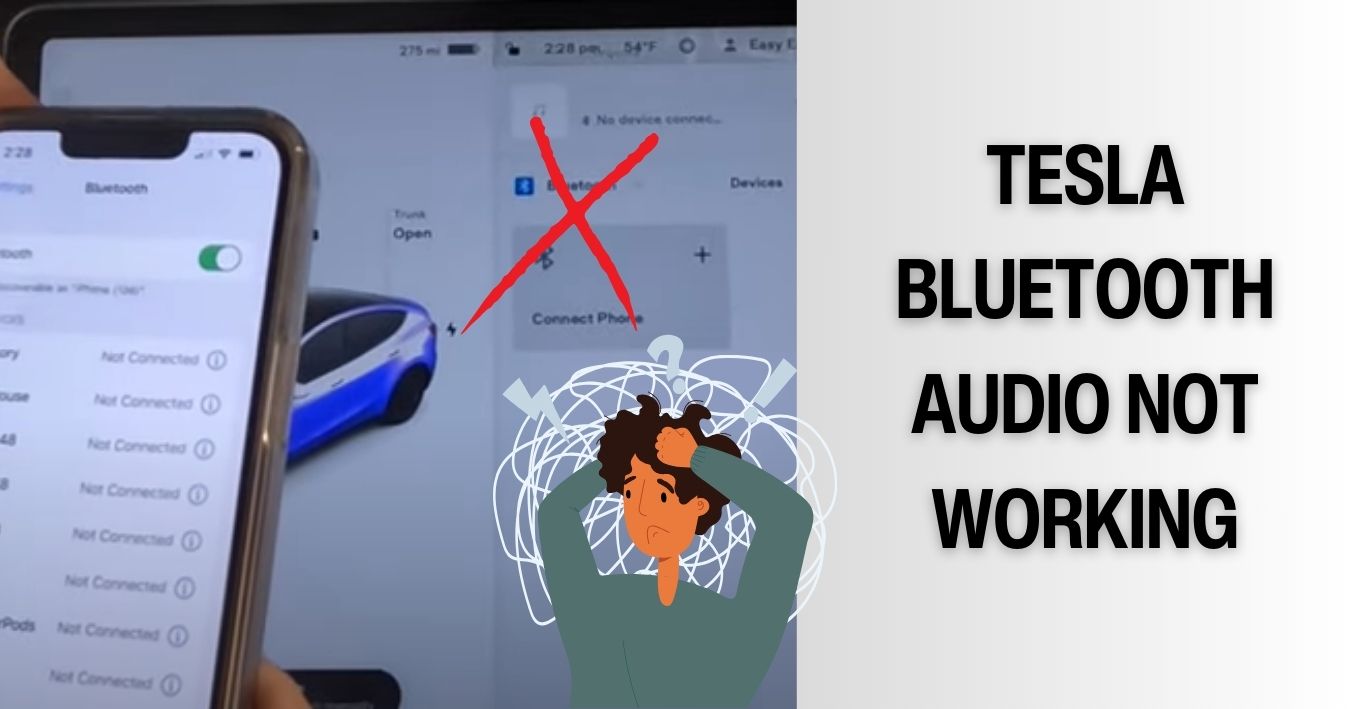
Using Bluetooth is vital to link your phone with your Tesla’s audio, enabling hands-free calls and access to various features. However, there are moments when you can face problems with your Tesla’s Bluetooth audio.
So, why is Tesla Bluetooth audio not working? The most common reason is because of software problems. The car’s software can have issues that impact how the audio functions. Besides, there are other problems like audio being turned off and speakers not working properly. It could also be Bluetooth errors and issues with the radio.
In this article, we’ll discuss the reasons behind Tesla Bluetooth audio issues and offer troubleshooting tips to assist you in resolving the problem.
Why Is My Tesla Bluetooth Audio Not Working?
Here are the reasons why Tesla Bluetooth audio is not working.
Software Issues In The Car
Bugs or glitches within the Tesla software lead to software issues. This also directly impacts the functionality of audio and Bluetooth in Tesla vehicles, causing malfunctions. Again, delays in updating the latest software and compatibility problems are part of the reasons why your car’s Bluetooth is not working.
Solution:
The most effective solution is to perform a car reboot. Here’s how you can reboot:
- Identify the two scroll wheels situated on both sides of your Tesla’s steering wheel.
- Press and hold both scroll wheels on the steering wheel simultaneously.
- Continue holding the scroll wheels until the touchscreen display turns off.
- Release the scroll wheels and wait for the display to turn back on.
The App Isn’t Running In The Background.
Unusual disruptions in the Tesla Bluetooth functionality can be attributed to the Tesla mobile app not operating in the background as it typically does. When the app on your phone is active in the background, it effectively communicates with the car regarding the Bluetooth connection.
But when the app is turned off, the car can’t find the signal to find your phone nearby. Consequently, the Bluetooth isn’t working.
Solution:
To fix these issues, you need to keep the app running in the background. Here are steps to follow to keep the Tesla app running in the background.
- To maintain the Tesla app running in the background, don’t close it from recent items when you leave the app. Just let it stay in the background mode.
- For Android users, navigate to Settings > Battery > Battery and Device Care > Never Sleeping App, and then add the Tesla app to ensure it stays awake.
- On an iPhone, you can leave the app running in the background.
For an improved experience, maintain the mobile app in the background by accessing your phone’s settings and opting for “Location > Always.“
Low-Quality Audio Source
If you’re streaming from a source with poor quality, like a low-bitrate MP3 file, it can lead to distorted audio or complete silence. Some Tesla owners say that when they use their phones for audio, the quality is not good.
They notice a difference between playing a particular audio track on Spotify directly in the car and playing audio on Spotify from their phone using Bluetooth.
Solution:
- Consider switching to a higher-quality file, improving your internet connection, or using a lossless format to enhance the sound quality.
- Confirm whether your device is compatible with the aptX codec. If not, consider upgrading your device or using one that has an aptX codec.
- If you’re an iPhone user, consider adjusting certain settings that could impact your Bluetooth audio quality. Navigate to Settings > Accessibility > Audio/Visual and disable Phone Noise Cancellation.
Deactivation Of The Audio Function
When the audio function of your Tesla is turned off, it stops any sound from playing through the car’s speakers.
Solution:
To resolve this, check the audio settings on your Tesla touchscreen and make sure the audio function is on. If it’s on, but there’s still no sound, try rebooting the car or checking for software updates. If these steps don’t work, consider reaching out to Tesla support for additional help.
Car’s Radio Is Experiencing A Malfunction
If the Tesla radio isn’t working well, it can affect the phone’s Bluetooth connectivity. This might happen if the car’s antenna loses connection or if the radio stops working. In this case, you’ll hear other sounds, but the radio won’t make any sound.
Solution:
If it’s an antenna problem, the audio will come back when you’re back within the right frequency range. When your radio is not working properly, reach out to Tesla support for help. They will check the problem and suggest a solution, which might involve getting a new radio.
Currently Not Signed Into The Tesla App.
If you log out of the Tesla app, the car’s Bluetooth will not find your device, causing the Tesla Bluetooth not to connect automatically. This can occur, even if the app doesn’t log out by itself, unless you accidentally press the log-out button.
Solution:
To address this concern, it’s necessary to log into the Tesla app once more. Here are the steps to guide you through the process of logging back into the app.
- Switch on your phone and unlock the screen.
- Launch the Tesla app.
- Provide your Tesla account credentials to complete the login.
- Verify that Bluetooth is enabled in your phone’s settings.
- Access your car’s monitor and choose your saved device from the Bluetooth settings.
- Allow some time for the device to establish a connection, and afterward, the Bluetooth audio should resume functioning.
Bluetooth Errors
Audio distortion, slow or garbled audio, or complete silence can result from Bluetooth errors. These errors happen because of problems with Tesla software, issues with the Bluetooth connection, or things interfering. Make sure your device has enough battery and turn it on.
Solution:
To fix it, you can restart the car, unpair and pair the device anew, or check for software updates.
Here’s how to unpair the car from your phone
- Navigate to the “Bluetooth” option on the touchscreen
- Identify the phone currently linked to your car and choose it.
- Once selected, you’ll find an option to “Forget Device” or “Unpair Device.” Click on this choice.
- When prompted, affirm the unpairing action.
- Following this confirmation, your Tesla car will no longer be paired with your phone.
Here’s how you can properly pair your Tesla with your phone after unpair them.
- Activate both your car’s Bluetooth and your phone’s Bluetooth.
- Then, tap “Add New Device.“
- Select “Start Search” and be patient for a moment.
- Following that, you’ll spot your Bluetooth device on the Tesla monitor.
- Tap your Bluetooth device.
- Then, check your phone, and you’ll encounter a Bluetooth Pairing Request with two choices (Pair and Cancel).
- Select the Pair option on your phone, and it will take a few moments to complete the pairing.
FAQs
Here are some questions people also asked on the Tesla Bluetooth audio not working issue and their answers.
In the Tesla Model 3 web browser (Chromium), Pandora is functional but exclusively in Park mode. It won’t operate while the vehicle is in Drive.
Select the Phone source on the Media Player, tap the name of your Bluetooth-connected device, and then tap CONNECT. Your Bluetooth device will start playing the currently active audio file on your device. If there’s no audio file playing, use your device to pick the audio file you wish to listen to.
A Tesla car can connect to up to 10 different phones. However, just one phone can function at a time in terms of calls and media.
Final Word
When facing problems with your Tesla’s Bluetooth audio, it’s crucial to troubleshoot and identify the cause for a resolution. Common issues include software glitches, improper audio settings, speaker malfunctions, Bluetooth errors, and radio issues. Our troubleshooting tips will help you fix it properly.
Maintaining a reliable Bluetooth connection aids optimal audio performance in Tesla vehicles. By adhering to these guidelines, users can enhance their in-car audio experience. In order to ensure seamless connectivity between their devices and Tesla’s advanced audio system.

I am an experienced guide in electric mobility, offering clear and expert guidance for those venturing into the world of electric vehicles.
Through collaborations, research, and hands-on experience, I navigate readers through the evolving landscape of smart automobile technologies and the significance of renewables.