
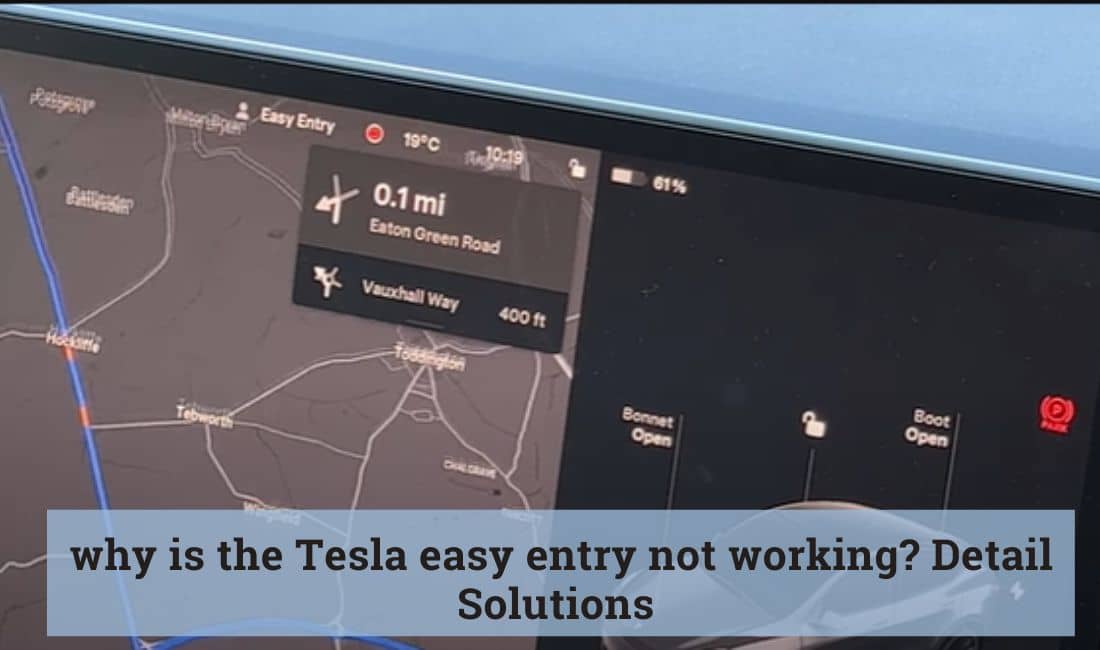
The easy entry system is an ultimate addition to Tesla. It enhances the user’s experience regarding auto adjustment of steering and seats, accessibility for persons with limited mobility, etc. We know you have already become a fan of easy-entry facilities. And any dysfunctional attitude of this system makes you frustrated, which happens sometimes.
So, why is the Tesla easy entry not working? The main reasons include the following.
- Software-related issues
- System failure
- Driver profile is not saved
- Limited seat range
- Activated Valet mode
- Multiple profiles exist.
The minor reasons are that the seats and steering fuse are damaged, and you are using a third-party app. In this article, we go deeper into the mentioned issues and solutions. Let’s start.
Table: Causes & Solution of Tesla Easy Entry Not Working
The table below is designed to provide you with an at-a-glance view of the causes of your Tesla’s easy entry not working and the respective solutions.
| Causes | Solutions |
| Software-related issues | Download and install the software again |
| System failure | Give a soft reset |
| Driver profile not saved, or there are multiple driver profiles | Create and save a new driver profile |
| Limited seat range | Fix from the control section |
| Valet mode on | Turn off the Valet mode |
Tesla Easy Entry Is Not Working: Reasons and Solutions in Detail
We have already mentioned the causes briefly. Here, we will discuss the causes in detail while providing you with resolutions.
Issue With Software
The proper operation of the easy entry feature depends significantly on Tesla-provided specific software. Without this software, you cannot integrate the functions of the easy entry system.
If there is any bug within the software or it hasn’t received the updates timely, it will fail to send commands to the easy entry. The result is a dysfunctional Easy Entry system.
Our expert observation says that almost every Tesla 3 user has faced this issue. Users frequently report that their seats and steering wheels don’t adjust after updating to v10 software. This latest version causes malfunctions, whereas the older software had no issues.
How to Solve
To solve this issue, you have to reinstall the software. Below is the process.
- Step 01: Use the car’s screen and navigate to Controls. Go to the option named “Software.” Then, go to the “Update Available” option.
- Step 02: Tap on the “Software Update” option. The system will download the whole software again. Here, you must ensure your Wi-Fi connection is excellent and stable.
- Step 03: Now, open the Tesla app on your phone and go to the “Software Update” option.
- Step 04: Press the option named “Install.” After you press “Yes,” the software installation will start.
- Step 05: Wait until the installation, along with updating(if any), is done completely. We strongly suggest avoiding manual interference or action during the installation and update process. Finally, your Tesla’s easy entry will start to function correctly.
Issue With the System
Like every other vehicle, your Tesla’s internal system/infotainment system can experience occasional glitches or even temporary malfunctions. It is very natural and common.
In such cases, it becomes necessary to perform a soft system reboot to restore the previous settings for the Easy Entry feature.
How to Solve
The following is the stepwise process to soft reboot your Tesla’s operating system.
- Step 01: Put the car in the “Park” position.
- Step 02: Press and hold both scroll wheels on the steering wheel until the screen goes dark.
- Step 03: Wait approximately 30 seconds; don’t do anything with any buttons or switches.
- Step 04: You will see the Tesla logo reappear, and the infotainment system will restart. The issue with Easy Entry is also gone.
Driver Profile is not Saved
To enjoy Easy Entry’s customized adjustments of the steering wheel and seats, you must set a driver profile. In the process, you insert and save your name, preferred steering position, seat position, etc.
These personalized settings are stored within the car’s computerized system. They come into play each time you press the brake pedal to start your vehicle.
But, sometimes, the profile needs to be saved due to system malfunctions or your unawareness. This case hosts a non-working situation of the Easy Entry function.
How to Solve
The resolution is recreating the driver’s profile and saving it. To do so, follow the below process.
- Step 01: Begin by selecting the driver profile icon located at the top of the touchscreen.
- Step 02: Next, tap on Driver Profile Settings.
- Step 03: Choose the option “Add New Driver.”
- Step 04: Enter the driver’s name along with preferred seat and steering positions.
- Step 05: Finally, tap “Create Profile” to complete the process. Then, save the profile. The issue is resolved.
Here, we would like to mention that if you have wrongly saved multiple drivers’ profiles, the Easy Entry won’t function. In this case, the same resolution processes are applicable.
Limited Seat Range
Due to the system’s malfunction, your Tesla’s seat range gets limited. It means the Easy Entry won’t automatically adjust the seat, and you won’t be able to calibrate manually. It’s stuck.
How to Solve
The following is the fixing procedure for the limited seat range in the system.
- Step 01: At the beginning, ensure that there is no object behind the seat. Now, go to the “Controls” section on the touchscreen.
- Step 02: Tap on the “Service” option.
- Step 03: Look for the option “Driver Seat, Steering & Mirrors Calibration” and tap on it.
- Step 04: Pay close attention to the provided instructions on the prompt that appears.
- Step 05: After reading the instructions carefully, press the “Start” button. The Easy Entry will start again.
Valet Mode is On
Concerning several accidents due to the higher speeds, Tesla has added a safety feature named “Valet Mode.” When you activate valet mode for safety purposes and to mitigate the risk associated with the car’s speed, the driver’s profile becomes inaccessible.
This mode employs software to restrict various features, including the Easy Entry function.
How to Solve
Here, you need to disable Valet mode. The process is below.
- Step 01: Go to the “Controls” menu on the touchscreen.
- Step 02: At the top section, select “Driver Profile.”
- Step 03: In the bottom section, locate and click on “Valet Mode.”
- Step 04: Enter your 4-digit PIN to exit valet mode.
- Step 05: Now, go to the “Driver Profile” menu on the car’s screen.
- Step 06: Set the driver profile as per your preference.
- Step 07: Select the “Easy Entry” setting to customize it.
Check out this YouTube video to learn more about turning off Valet Mode:
People Also Ask
Here, we answer some common queries of Tesla owners regarding the dysfunction of Easy Entry.
The seats and control column contain vital fuses for power adjustments. The blown fuses often lock these components in place, which prevents height and position adjustments.
Yes, third-party apps can lead to Easy Entry dysfunction in Tesla. These apps contain bugs and cause software issues and profile corruption. To address this, disable these apps, power off everything, and then restart the ignition.
It is not that dangerous, but you will face discomfort. It is better to fix the issue ASAP.
Final Words
We hope that now you have a clear understanding of why your Tesla Easy Entry is not working. This issue can be attributed to various factors like software glitches, third-party app use, occasional profile corruption, etc. By using the given resolution approaches, you can get rid of this issue.
Finally, we want to remind you that Tesla’s functions and mechanical components are sophisticated. If you are not tech savvy, take professional assistance to resolve the issue to restrict the orientation of major mistakes.

I am an experienced guide in electric mobility, offering clear and expert guidance for those venturing into the world of electric vehicles.
Through collaborations, research, and hands-on experience, I navigate readers through the evolving landscape of smart automobile technologies and the significance of renewables.