
While Tesla’s keyless entry remains the most convenient feature, it’s not free of technical issues. One of the most common issues with the system is when your Tesla keeps asking for a key card. It often happens even though your mobile key is paired, and you’ve used the feature numerous times before.
In general, it happens when you turn off Bluetooth and location or use a mobile feature that restricts them from running in the background. A software glitch, Tesla App problems, or key card malfunctions can also be the culprit. Restarts, resetting, or reactivation of the mobile key function usually solve the issue.
Let’s dive into the details and explore everything regarding the Phone as a Key feature and related problems along with easy solutions.
How Does the Phone as Key Feature Work?
Before we address the key card issue, let’s understand how exactly the feature works. To unlock and drive your Tesla, you can use a credit card-sized device that eliminates the need for a key. The keyless function utilizes the near-field communication (NFC) technology.
If your mobile device supports the NFC tech (most modern devices do), you can pair your phone to the keyless system. This way, you turn on the ‘Phone as Key‘ feature and it allows you to enter and drive your Tesla just with your phone. Here’s how to active the phone key feature on your Tesla:
- Open the Tesla App on your phone and log into your Tesla account. Turn on your mobile Bluetooth and Location.
- Unlock your Tesla using your key card and sit inside. On the Tesla App, locate the ‘Set Up Phone Key’ option. Tap on it and choose ‘Pair‘.
- Locate the card reader under the dash or center console and scan the key card. Once the pairing is done, tap ‘Done‘.
- Now, open your Tesla’s ‘Controls‘ and tap ‘Safety‘. Select ‘Allow Mobile Access‘ to enable the phone key.
- To unlock your Tesla, you can either use the App’s ‘Lock‘ option or simply tap the device against the B-pillar of your Tesla.
Why Does Your Tesla Keep Asking for a Key Card?
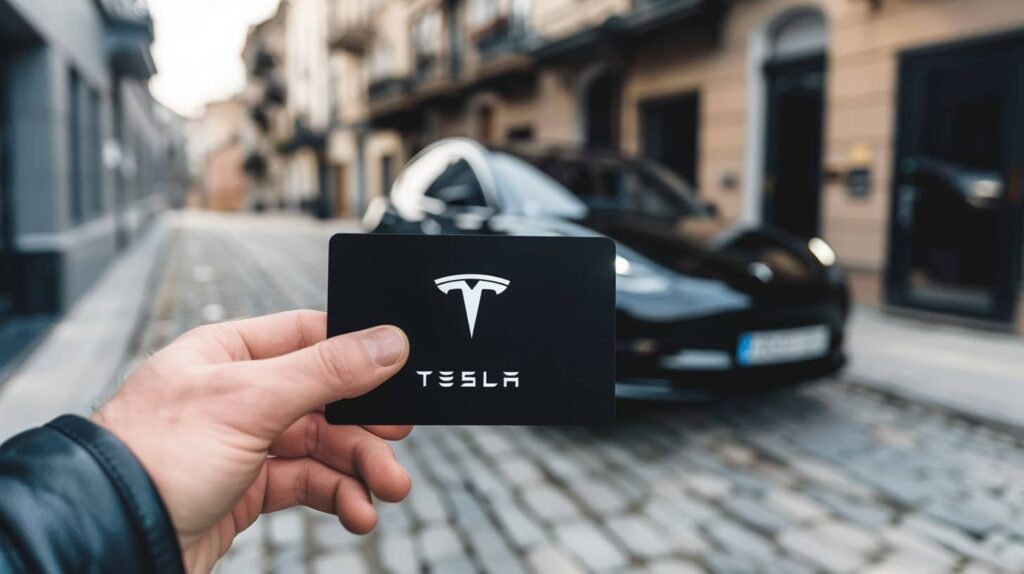
After setting up your phone as the access key, you don’t have to use the key card anymore to unlock or drive the car. However, sometimes the system keeps asking for the key card even when your phone is paired. Here’s why it happens:
Connectivity and Location Issues
Yes, I know the first thing you do while using the phone key feature is turn on Bluetooth and Location. However, your phone’s Bluetooth or Location often turns off automatically due to another safety or battery feature.
For example, using the battery-saver mode and network interruptions might turn off these connectivity features. The same happens to some devices when the battery is low and after resetting the network settings.
Software Updates
Some users face the Tesla phone key not working issue for not upgrading the software. However, others noticed it after installing the latest version. It can happen both in the case of your Tesla and your mobile device’s software updates.
Outdated software often fails when it comes to key recognition. On the other hand, new versions feature safety and battery updates.
With the new software version, your vehicle or phone can turn off the phone key feature to save energy.
System Glitch or Bug
Like any complex software system, Tesla’s operating software occasionally encounters glitches or bugs that affect its normal operation. Therefore, your Tesla keeps asking for the key card even though it’s not necessary.
In this case, you can press the brake pedal for about 30 seconds to start your vehicle. However, if that doesn’t work, you’ll have to reset the software.
Tesla App Issues
When you try to unlock or drive your Tesla using your phone, you must keep the Tesla app open or running in the background. Besides, the app has to track your location, and leaving the app while entering the vehicle doesn’t allow it.
Some of your mobile functions can keep it from running to save battery charge or prevent security issues.
Damaged Antenna and Sensors
To receive the necessary signal and data from the phone, your Tesla features an antenna and sensors on the door and the steering wheel.
Try taking your phone very close to the side mirror if you’re not able to unlock the door with your phone. Place it near the card reader if the key card required issue arrives while starting the car.
Key Card Malfunction
This one is only applicable if you’re trying the phone key feature for the first time. A damaged key card with physical wear or internal malfunctions doesn’t transmit the signal correctly.
As a result, the home authentication process might fail, prompting the car to request a key card.
What to Do If Your Tesla Keeps Asking for the Key Card?
If you’re lucky, you can easily get rid of this problem without dealing with Tesla’s customer service representatives. Numerous Tesla owners have shared practical tips to get the phone key working again. Below are some easy solutions to try:
Change the Settings for Mobile Connectivity
To keep using your phone key, Bluetooth and Location must always be turned on. If you’re an iPhone user:
- Open the ‘Settings‘ of your mobile and choose ‘Apps‘. Go to ‘Tesla’ and turn on all the connectivity options including Bluetooth and background app refresh. If you’re experiencing issues with the Tesla app not refreshing, take a look at our guide for effective solutions and troubleshooting tips.
- Go back to the settings tab and look for ‘Location‘. Enable it and choose ‘Always‘ so that it doesn’t turn off automatically.
- For Android users, the process is slightly different:
- Go to your ‘Settings‘ and open ‘Apps‘. Choose ‘Manage Apps’, tap on ‘Tesla‘, and select ‘App Permissions’. Enable all the connectivity and location features and tap on ‘Always’ instead of ‘Only When Using the App’, or ‘Never’.
- Finally, disable battery or data saver features from the control panel of your phone so that the Tesla app can run in the background.
Turn on Airplane Mode and Use the Key Card
Here’s a quick fix shared by your fellow Tesla owners. If your Tesla keeps asking for the keyword, take your phone and turn on the ‘Airplane‘ mode from the control panel.
After 15 to 20 seconds, disable it and turn the connectivity options back on. In case this doesn’t fix the issue, use your key card once to unlock or start your Tesla. It often fixes minor bugs and allows you to use your phone key the next time.
Update or Reset Software
You can get rid of glitches, bugs, or temporary malfunctions in the system by updating your Tesla software or rebooting it. Here’s what you need to do:
- From your Tesla’s touchscreen, go to ‘Controls‘ and tap on ‘Software’. If any new versions are available, click on the ‘Download’ option. Install it right away or schedule it for later according to your convenience.
- For a software reboot or reset, hold both scroll wheels of your Tesla at the same time. Wait for 30 seconds as the touchscreen goes black and then turns on again. It indicates that you’ve successfully reset the system.
- When your Tesla refuses this method, try manually powering it off. For this, locate ‘Safety & Security’ on the control panel of your Tesla. Tap on ‘Power Off’ and wait for 2 to 5 minutes as the car shuts off. Now, press the brake pedal or open your car door to switch it back on.
Reset the Key Card
If you have the key card in your pocket, give this method a try. First, open your Tesla’s door with the key and depress the brake pedal for a few seconds.
As you hold the pedal, insert the key card in its designated slot and wait for 10 seconds. Release the pedal and remove the key card when your car beeps.
Remove the Phone Key and Re-Pair
When nothing else works, you can remove all the added keys and reset them. Here’s how:
- From your Tesla’s touchscreen, go to ‘Controls’ and select ‘Locks’. Click on the phone key you want to uninstall and tap on the trash can icon to delete it.
- To confirm your action, authenticate your key card by placing it on the designated sensor under the dash. Uninstall the Tesla App on your phone and remove cache data.
- Now, reinstall the Tesla App and insert your account. On your Tesla’s control settings, go to ‘Locks‘, select ‘Keys’, and tap on ‘Add Keys’. Finally, scan your key card and confirm pairing.
Wrapping Up!
Although Tesla keeps asking for the key card is a pretty common issue, it’s usually easy to fix. Try all the abovementioned methods one by one until you find an effective solution for you. However, if it’s a damaged key card or a bad antenna, you have to contact Tesla support.
Another way is to replace your key card and pair it with your vehicle. For instant access to your vehicle, use your key fob, Tesla smart ring, or the key card as alternatives to the phone key.

I am an experienced guide in electric mobility, offering clear and expert guidance for those venturing into the world of electric vehicles.
Through collaborations, research, and hands-on experience, I navigate readers through the evolving landscape of smart automobile technologies and the significance of renewables.